What's New in Bobyard: October 2026

Table of contents
October 26 updates
October 19 updates
- Auto-Count: more canvas and control
- Sharper drawings with vector PDFs
- More accurate landscaping counts
October 12 updates
- Wall Finder
- Irrigation takeoff improvements
- Plumbing takeoff improvements
- Bobyard University: Revamped and more trainings
WEEK OF OCTOBER 26, 2026
Flooring: Takeoffs show you how much material to order
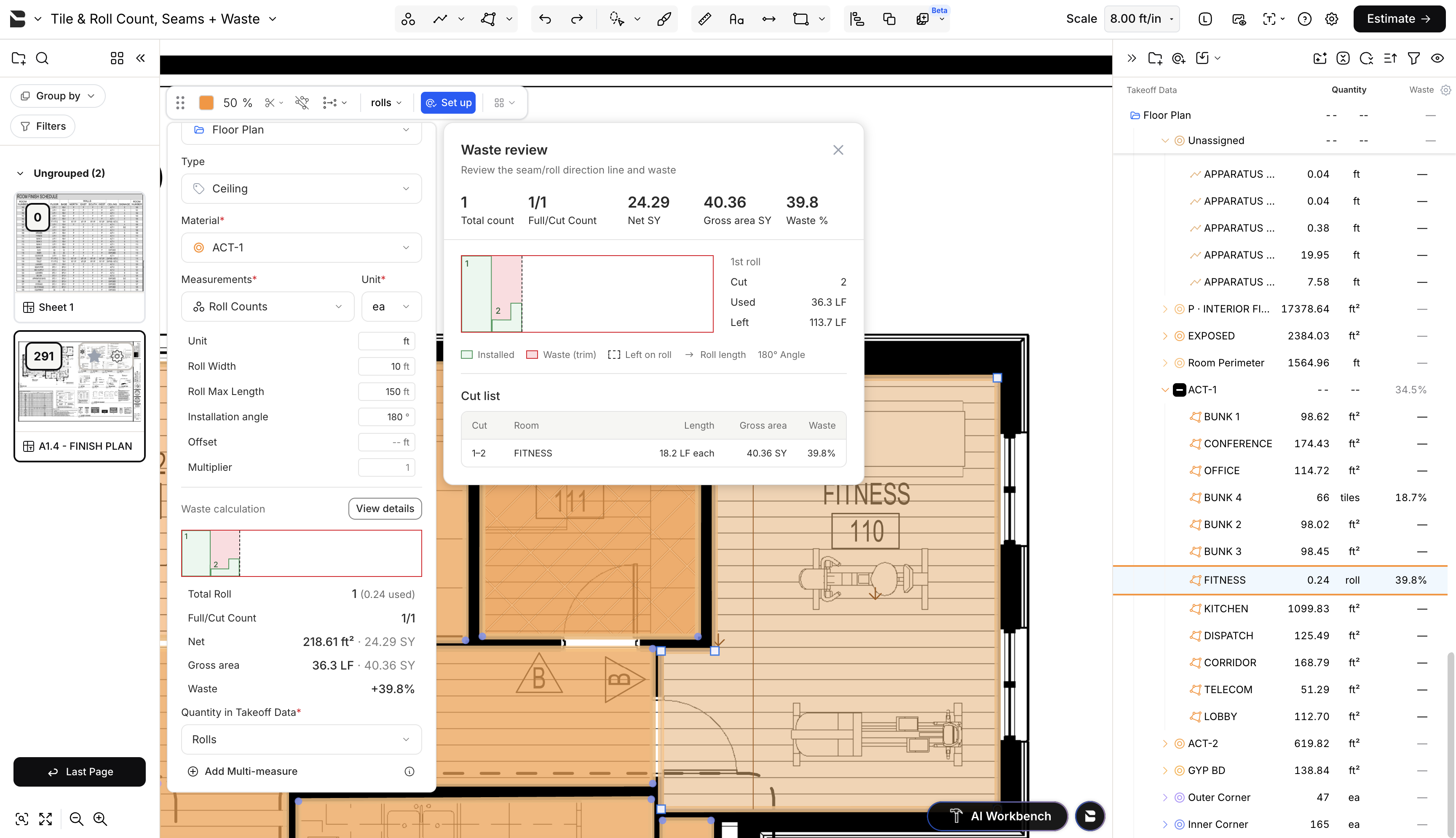
Until now, flooring takeoffs gave you room area and a basic tile count, but now you set the roll width or tile size and install angle, for one room or many, and Bobyard does the layout. You see seams, full and cut tiles, and the waste and quantity to order for each room, right in your takeoff.
What you can do with roll and tile counts
- Seams for roll goods. Set roll width, max roll length, and install angle, and Bobyard lays out seams and cuts on the floor plan.
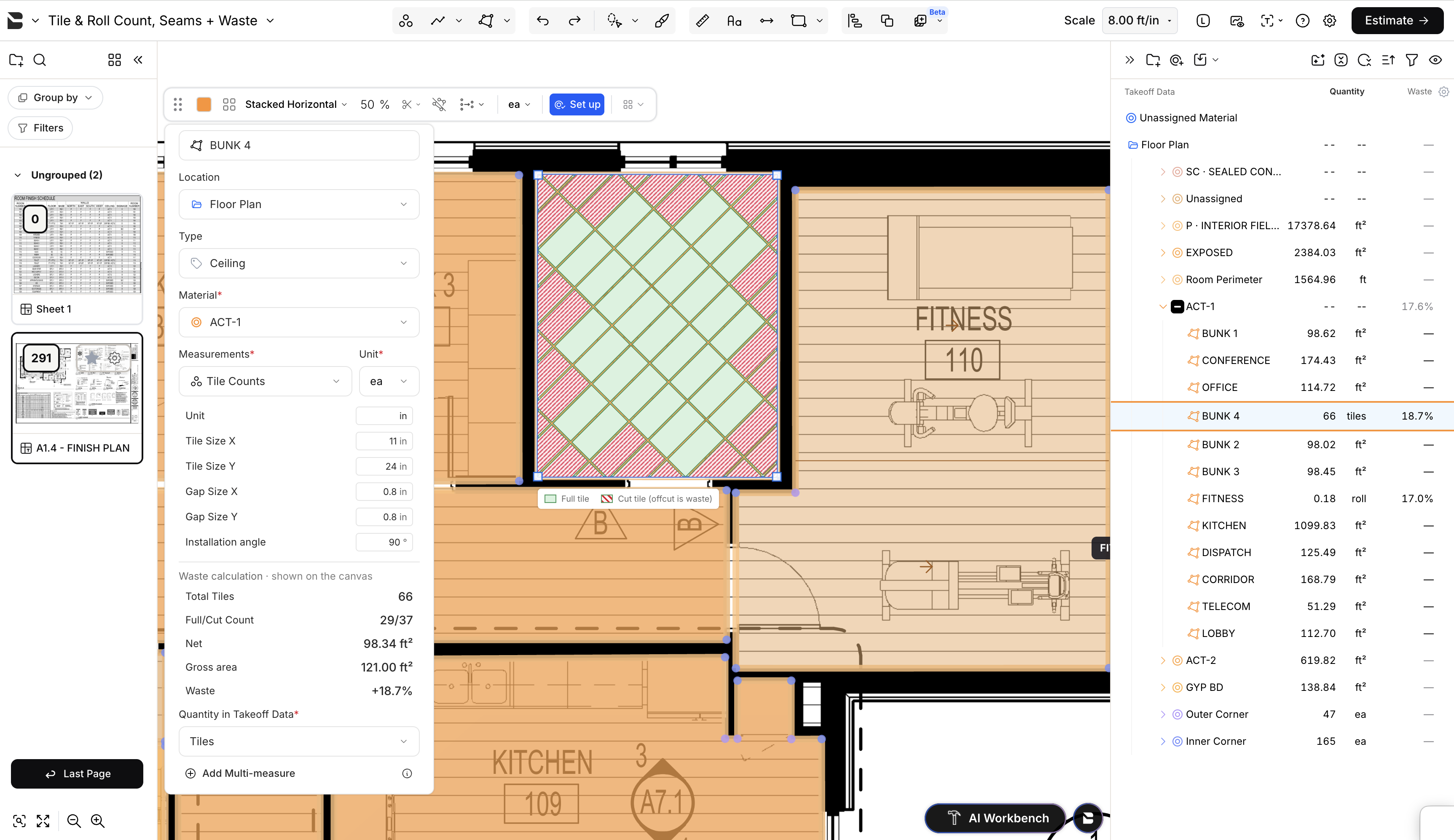
- Tile counts. Set tile size, gap, and angle, and Bobyard counts full and cut tiles and shows the cut tiles on the drawing.
- Waste by room. Each room shows net area, gross area to order, waste percentage, and the rolls or tiles to order, all calculated from the layout.
- Waste review. See each roll, its cuts, what's left on the roll, and a cut list for every room.
Watch the flooring training on Bobyard University →
Aren't a Bobyard customer yet? See Bobyard for Flooring on a demo →
Plumbing: Choose presets, and AI review settings
Plumbing takeoffs now start with your systems already set up, and AI review gives you finer control when you need to correct a result.
Set up your systems once
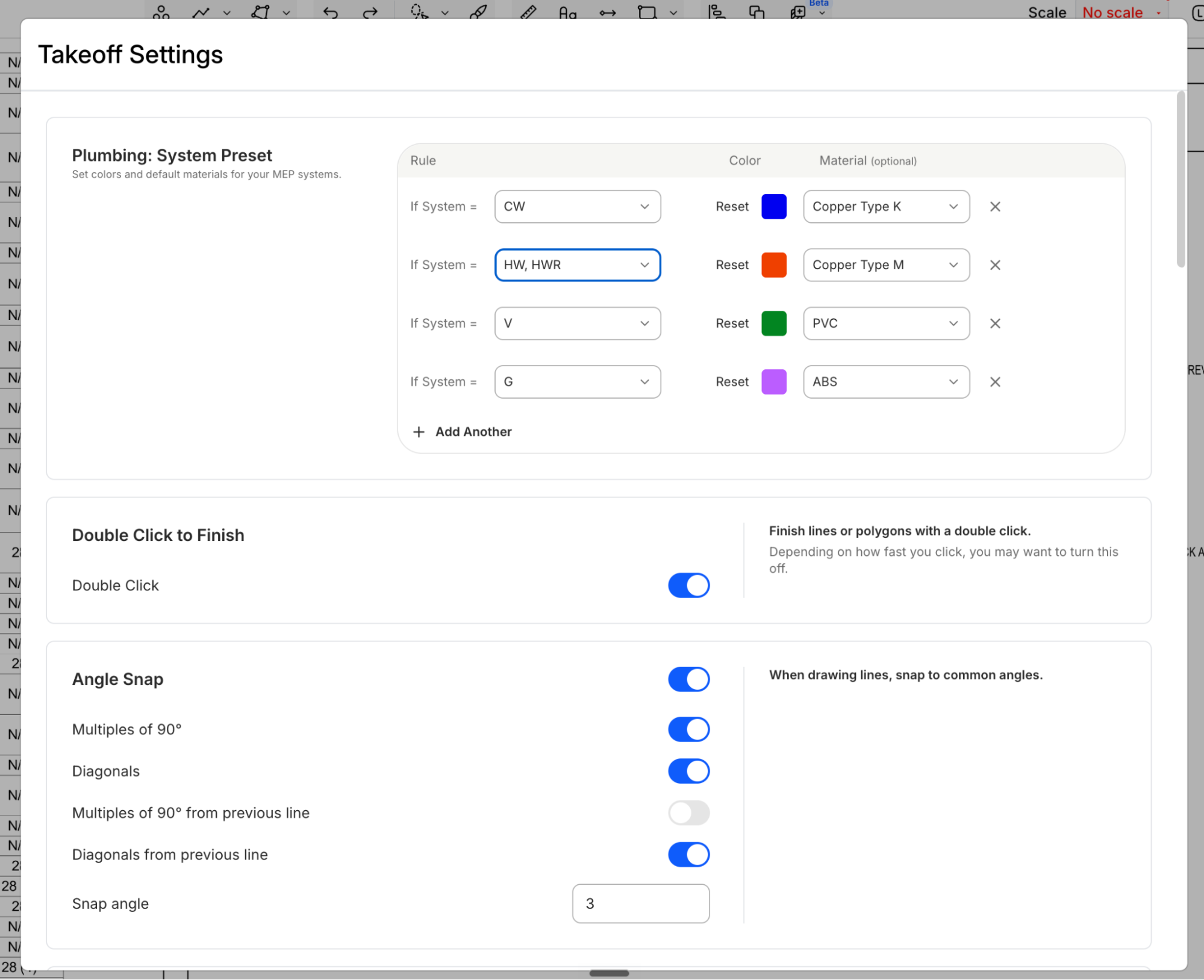
Build your plumbing systems before takeoff begins and they carry across projects, so setup only happens once. Assign a default material and color to each system, and every measurement in that system picks them up automatically.
Correct symbols one at a time
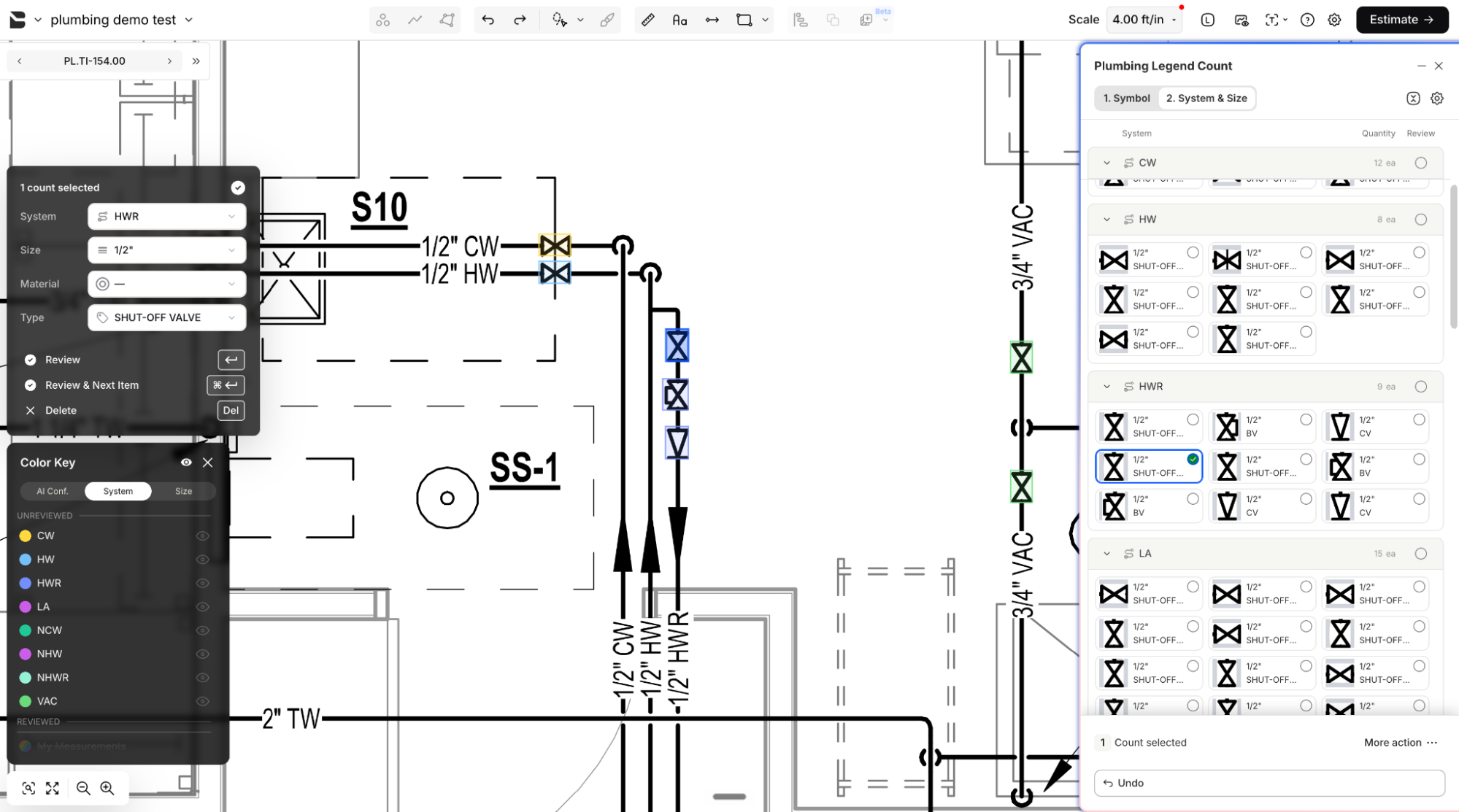
In Plumbing Symbol Legend Count, the updated Review Association lets you edit the system and size of individual symbols instead of changing them as a group, so you have finer control to correct any AI results.
Have questions? Bobyard's new Help Center has answers
We launched the Bobyard Help Center, a single home for how-to articles to get quick answers for how each feature works or troubleshoot. Bobyard University is still your go-to for more in-depth learning.
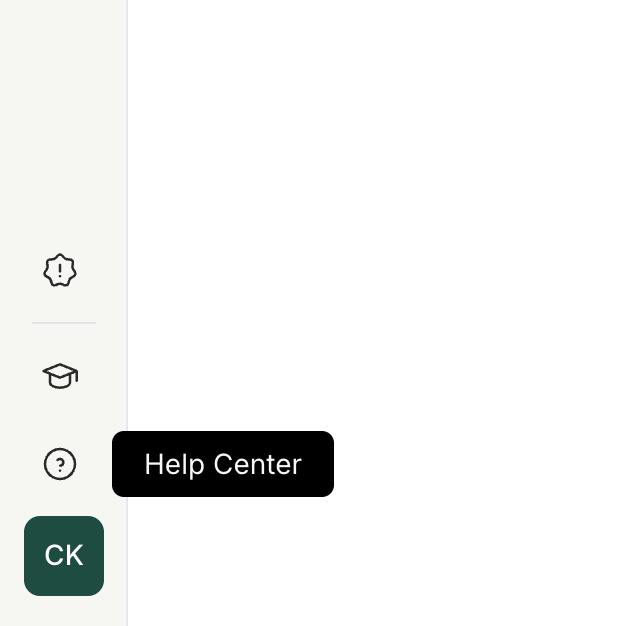
To get to the Help Center, from the left-most sidebar, click the ? button on the bottom left. Bookmark the Bobyard Help Center to access it directly (just make sure you're logged in to Bobyard.)
Bobyard is now SOC 2 Type 1 compliant
This month, we achieved SOC 2 Type 1 compliance, the first step toward full SOC 2 Type 2 compliance. You can review our security practices and get access to the report on our Trust page.
Subscribe to our blog and check our weekly customer emails to always stay in the know.
WEEK OF OCTOBER 19, 2026
Auto-Count Review, redesigned: more canvas, more control
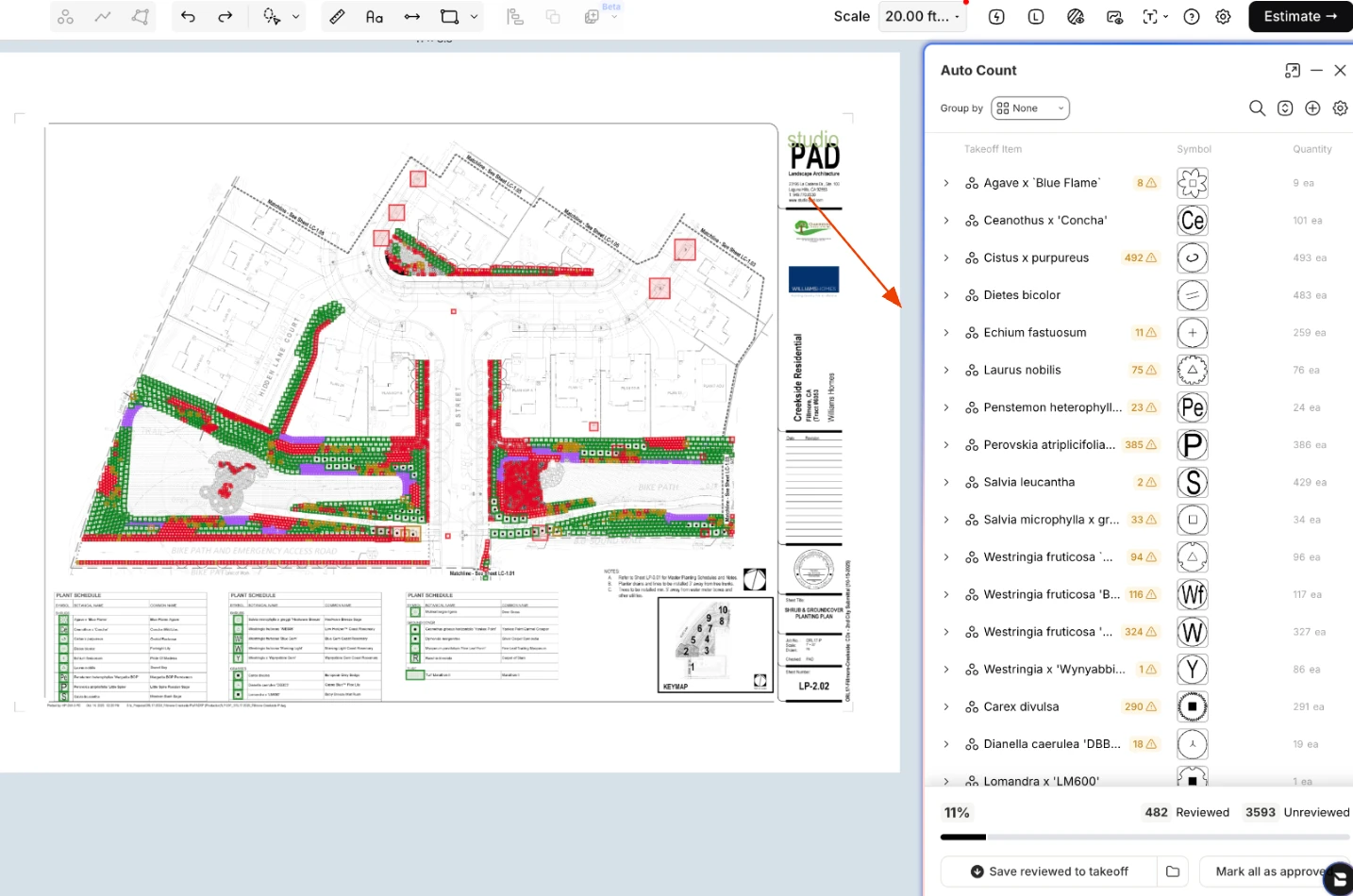
Auto-Count Review gives you a larger canvas and easy to read panel so you can focus on the counts. You can also fix results as you go, with new ways to add anything AI didn't include, or move counts to a different item.
What else you can do with Auto-Count updates
See a single-panel layout

More canvas space and a more focused review flow.
Pin and preview takeoff item symbols
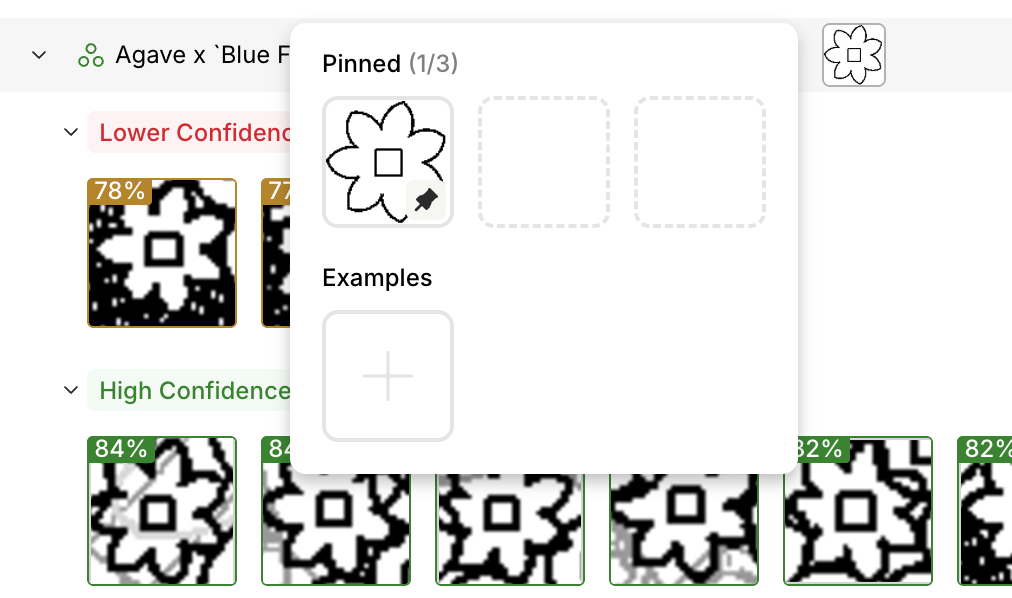
See a preview of the counts tied to each takeoff item right in its line. Add more examples and pin what you need for easy reference.
Add more items and examples
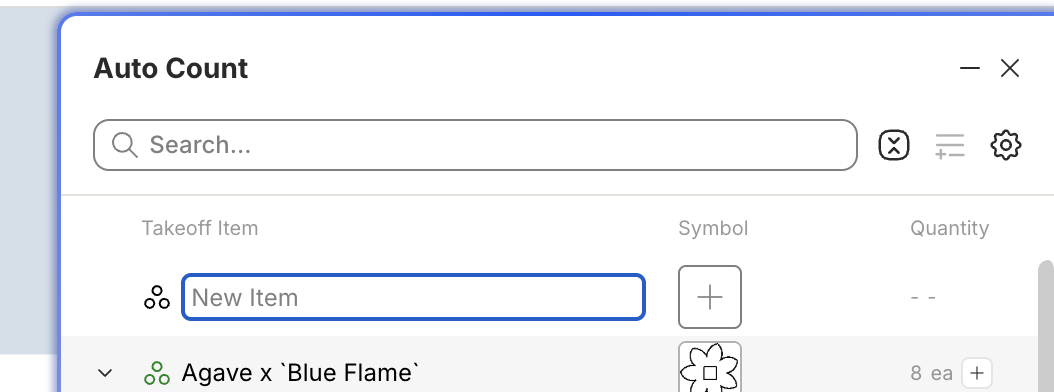
Forgot an item in your legend extract? Now you can add it. Get higher accuracy by giving our model more examples to learn from.
Copy over look-alike counts
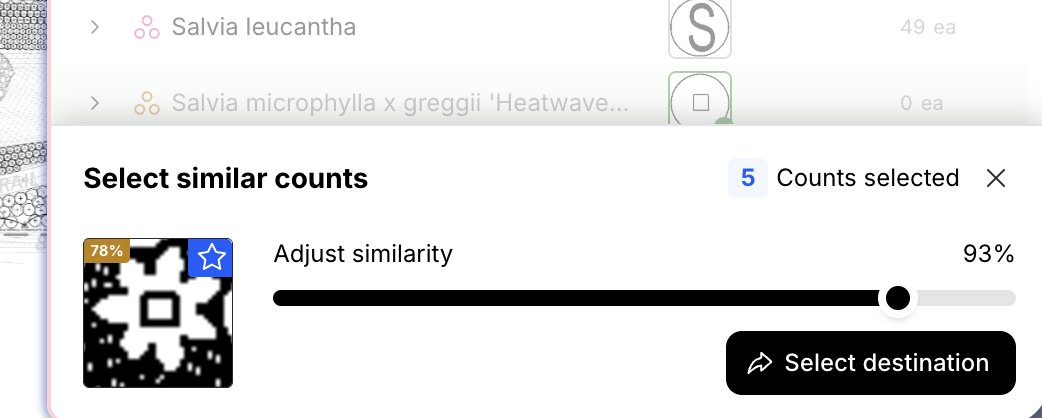
Move an item's counts to another item, or select look-alike counts by hand or with the Similarity Adjuster to move them all at once.
Improve model accuracy with reruns
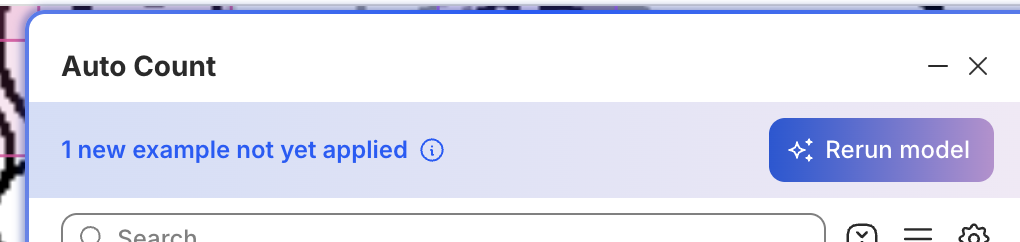
As you add items and examples, we recommend re-running the model to continuously improve its output.
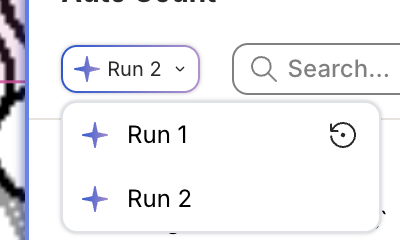
You can also go back to view previous runs and restore one if needed.
Color code your way
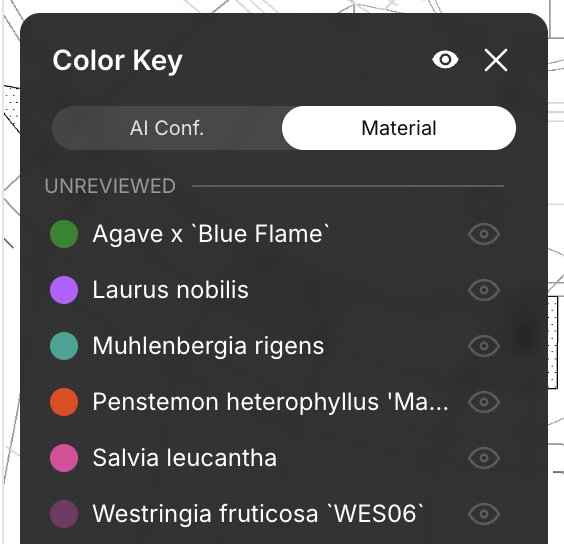
You choose the color coding. Switch the color key between AI confidence score or material—whichever makes review easiest for you.
Annotate your takeoff
Leave notes as you work, and group counts to review them faster.
Review with one click
Approve, reject or move counts straight from the drawing by right clicking on the canvas.
Cleaner saves and fewer duplicates
Saving is smoother too. Choose where new items land when you run auto-count across multiple legends, drag and drop counts onto takeoff items, and rerun counts without duplicates cropping up.
The latest auto-count updates are available for legend counting, callouts, single symbol count and text search across landscaping, floor plan, plumbing and electrical.
More models across aerial, doors and windows, risers, and mechanical, are coming soon.
Learn more in Bobyard University
Check out our training modules for Auto-Count and our counting models in Bobyard University for the following trades:
- Landscaping
- Irrigation
- Plumbing
- Electrical
- ...more trades coming soon!
Aren't a Bobyard customer yet? See Auto-Count Review on a demo →
More accurate landscaping counts
Relatedly, landscaping auto-count is more accurate than ever. Both new and existing legends work, and if an old example can't be reused, Bobyard will show you which ones to redraw. We also improved accuracy for auto-fill and line hinting in landscaping, with more trades to follow soon.
Sharper drawings with vector PDFs
Drawings on the canvas now display as vector PDFs across every trade, so plans stay razor sharp at any zoom level.
Aren't a Bobyard customer yet? See landscaping takeoffs on a demo →
WEEK OF OCTOBER 12, 2026
This week is a big one for better takeoffs across multiple trades. We took the tracing out of wall takeoffs, rebuilt irrigation takeoffs from the ground up, and made plumbing takeoffs faster to run and easier to review.
Wall Finder: wall centerline and wall face takeoffs in one click

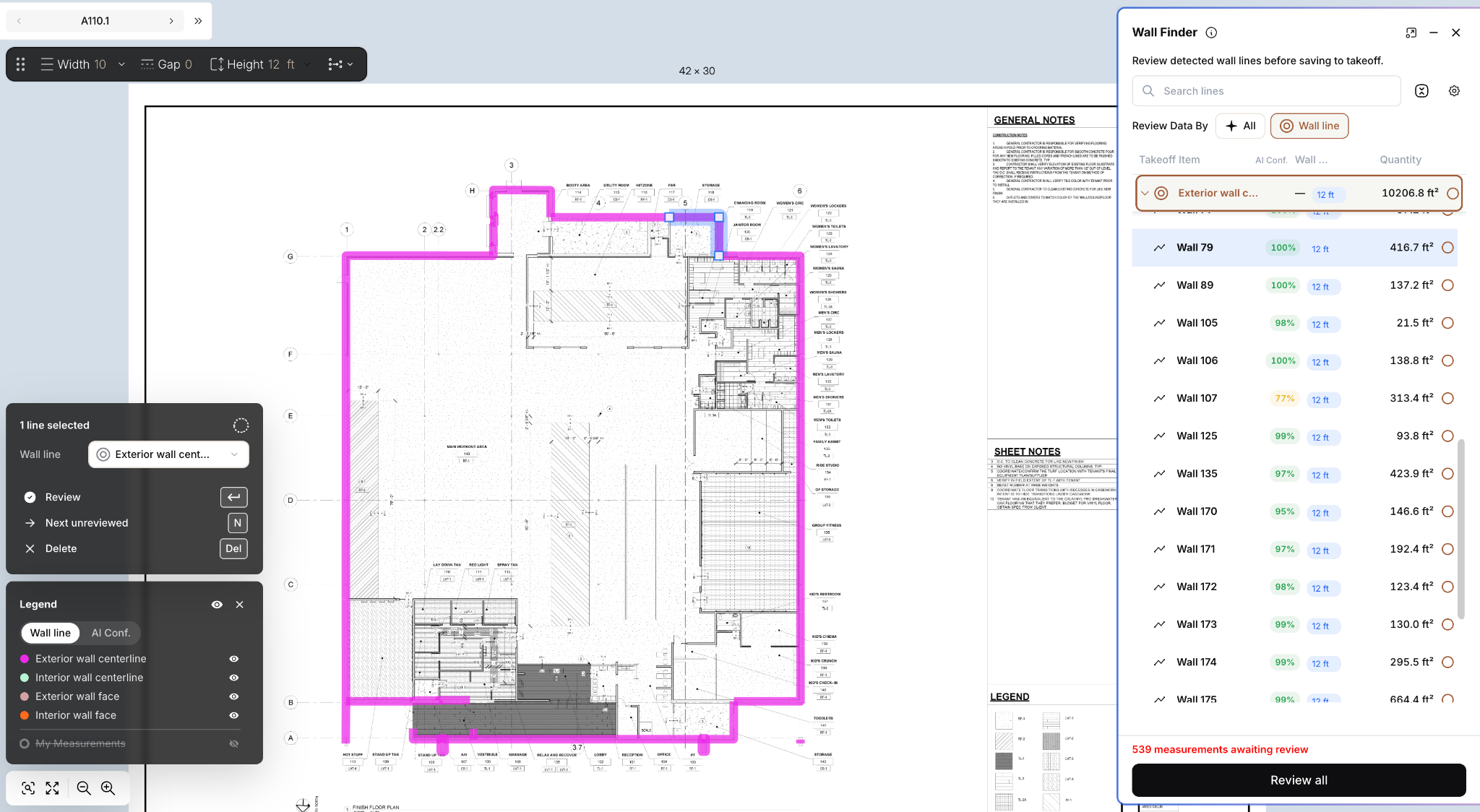
Wall Finder is our latest AI model that measures every wall on a floor plan for you. Run it once and get takeoff-ready wall lengths for framing, drywall and painting, with no manual tracing.
What you can do with Wall Finder
- Centerline for framing and drywall. Get one line down the middle of every wall, split into exterior and interior. Walls shared by two rooms are counted once, not twice, so your linear footage stays accurate.
- Wall face for painting. Calculate the inside face of exterior walls and both sides of interior walls, so every surface that gets finished is measured.
- Wall area from height. Set a wall height and every line shows its area (length × height) next to its length. You can change the height any time.
- Review with confidence. Every line comes with an AI confidence score, so you can quickly check, approve and send it to your takeoff.
Watch the Wall Finder training on Bobyard University →
Aren’t a Bobyard customer yet? See Wall Finder on a demo →
Irrigation takeoffs, rebuilt: automatic line detection and smarter counts
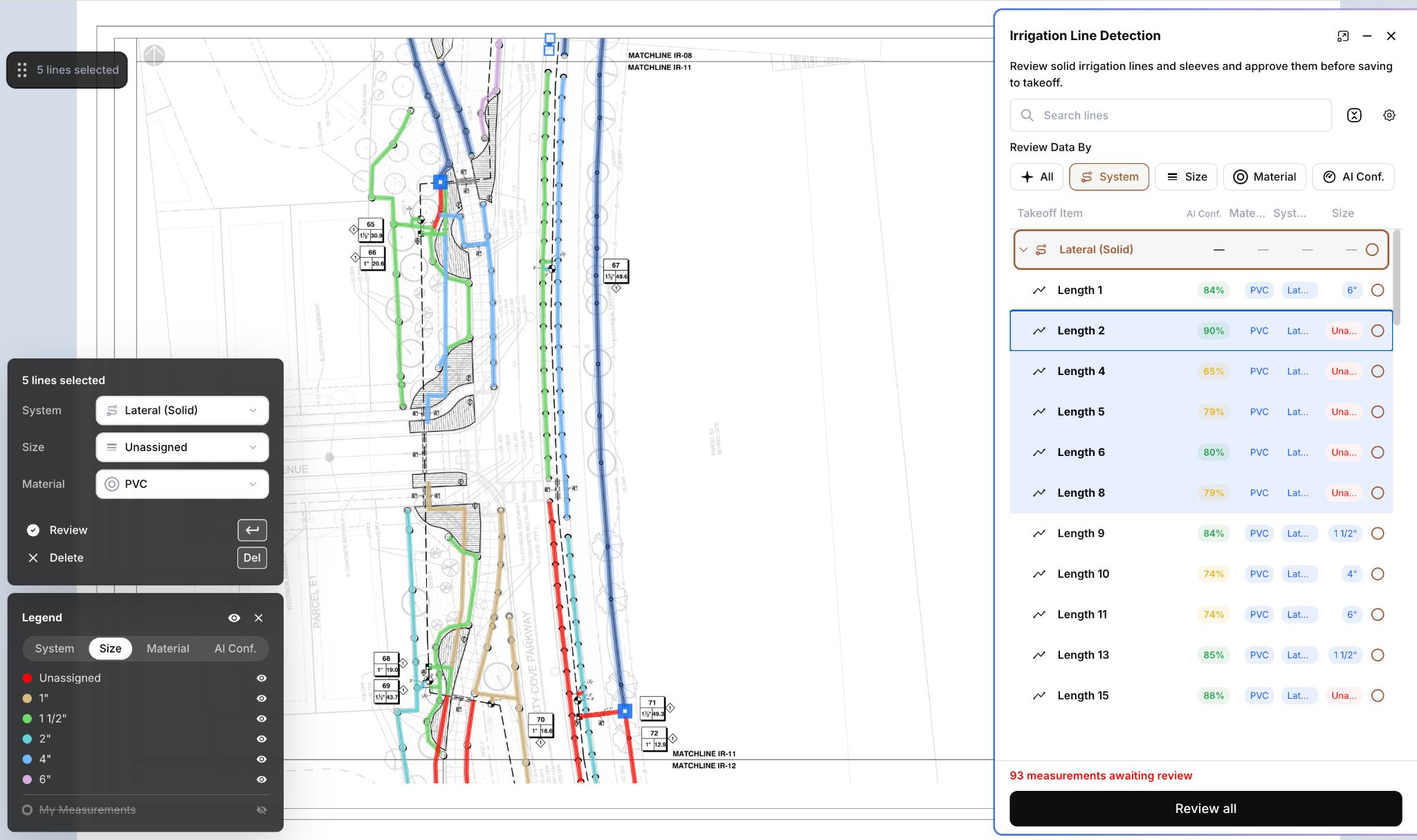
We went back to the drawing board for irrigation takeoffs to get our most accurate counts yet. The legend does more of the counting for you and automates detection, while giving you more options to clean and refine quickly. You get the speed you expect from Bobyard, with more control and confidence in the results.
Top irrigation takeoff updates
- Rebuilt line detection. Bobyard now automatically distinguishes and groups mainline, lateral and drip lines by width.
- Bulk and manual editing tools. Reassign widths in bulk, merge or split lines anywhere, and simplify with three different modes.
- Smart valve and legend counting. Break out counts by callout and pipe size directly in the legend.
- Line pattern search. Classify dashed versus solid lines easily.
Watch the irrigation takeoff training on Bobyard University →
Aren’t a Bobyard customer yet? See an irrigation takeoff on a demo →
Plumbing takeoff improvements
This multi-faceted release makes AI pipe takeoff more accurate and easier to review, and makes the manual tools quicker to use.
System colors you control
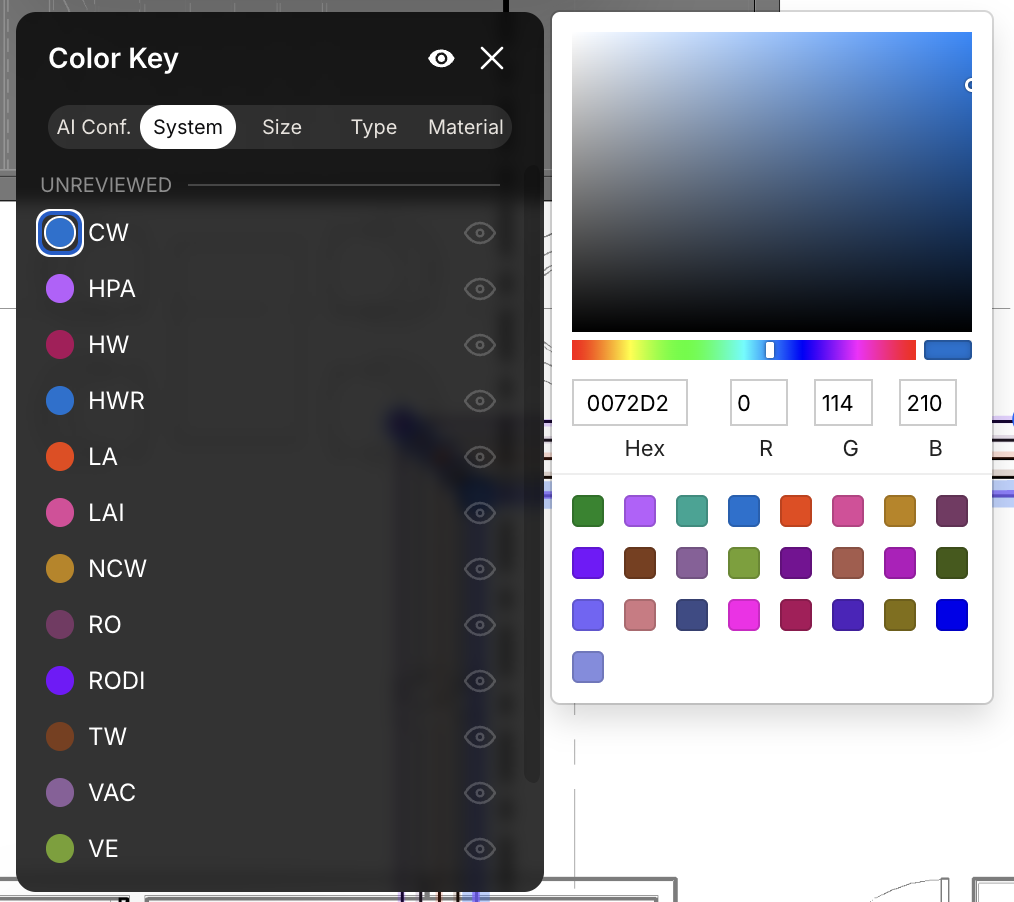
Change a system's color right from the key, and it stays consistent from review all the way through your saved takeoff.
Clearer AI review for pipes

When reviewing pipes from System Callout and Line Pattern Search, you can see the other systems dimmed in the background so you can focus on the one you're checking.
Edits that stay in place
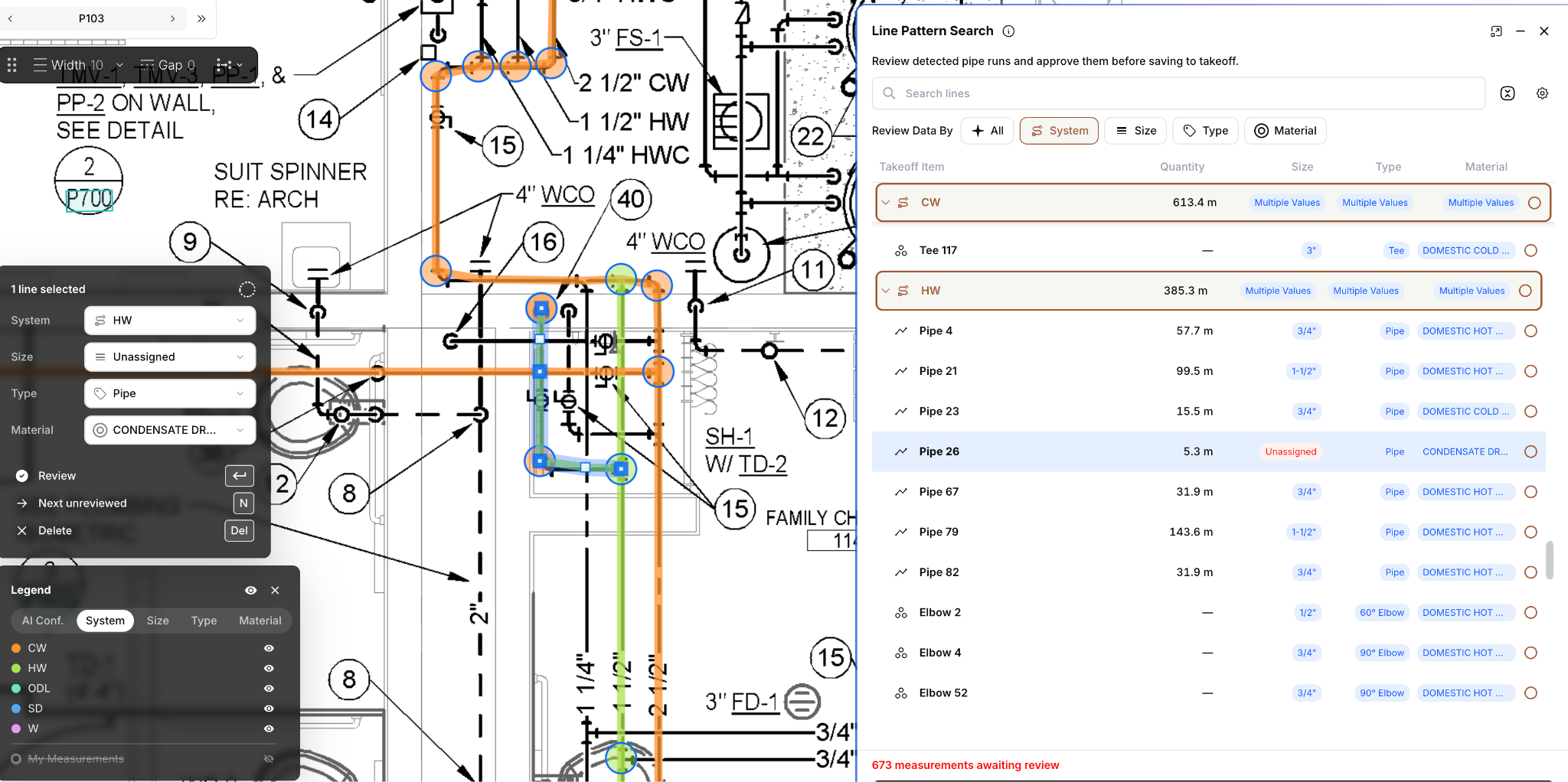
Previously, changing a line's system made it jump away, and you had to find it again. Now measurement metadata edits happen in place.
Hover to see overlapping points
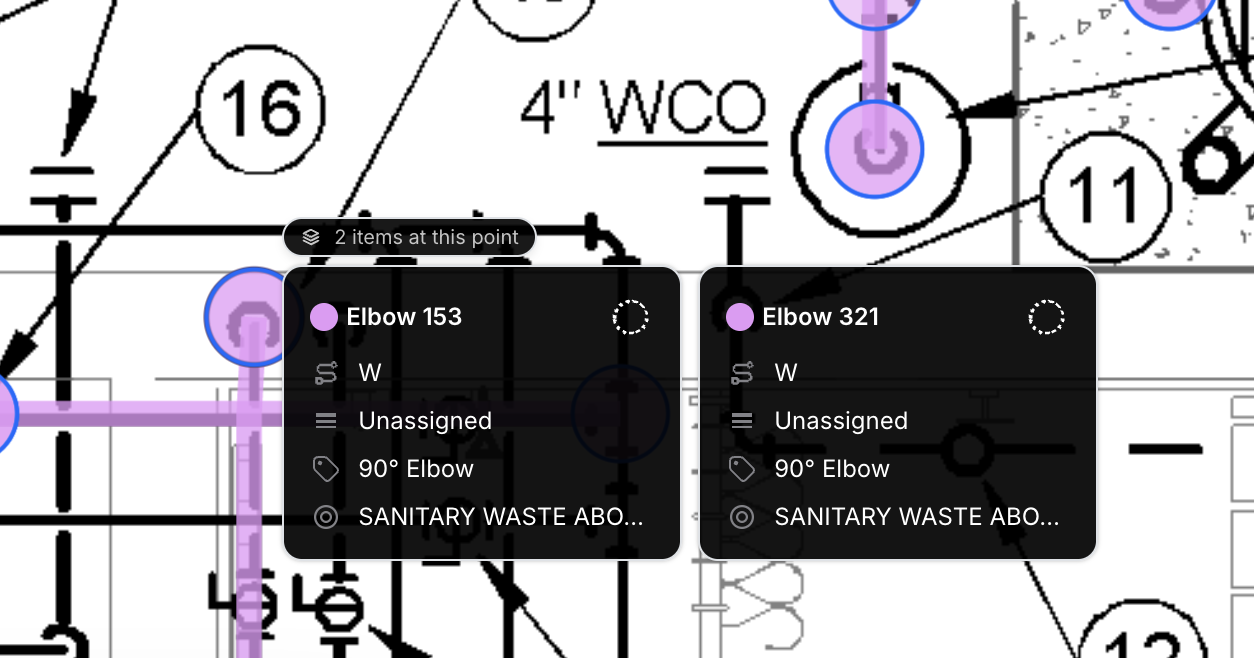
When two dots sit at the same spot, hover to see each one's details instead of guessing or moving them apart.
Angle Lock for drawing tools
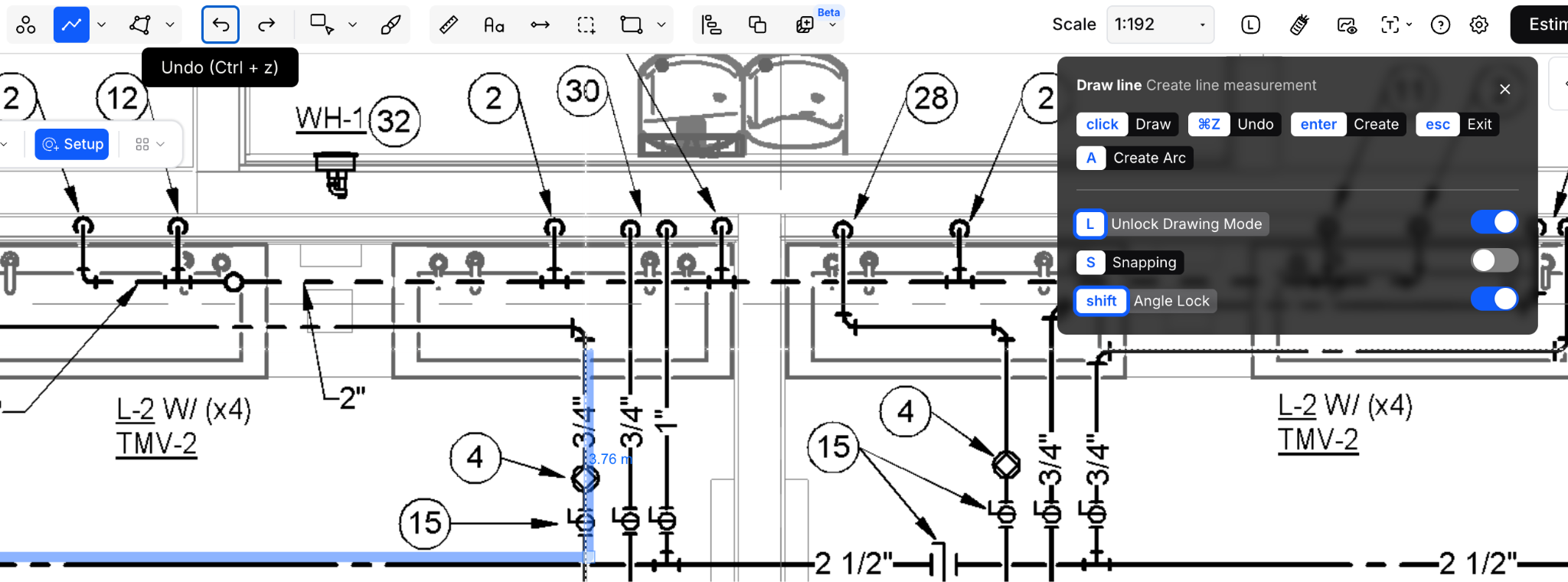
The line and point-to-point tools now snap to 45° multiples, so pipe runs are drawn straight and at the correct angles with no manual adjustment.
Multi-region selection for AI takeoff
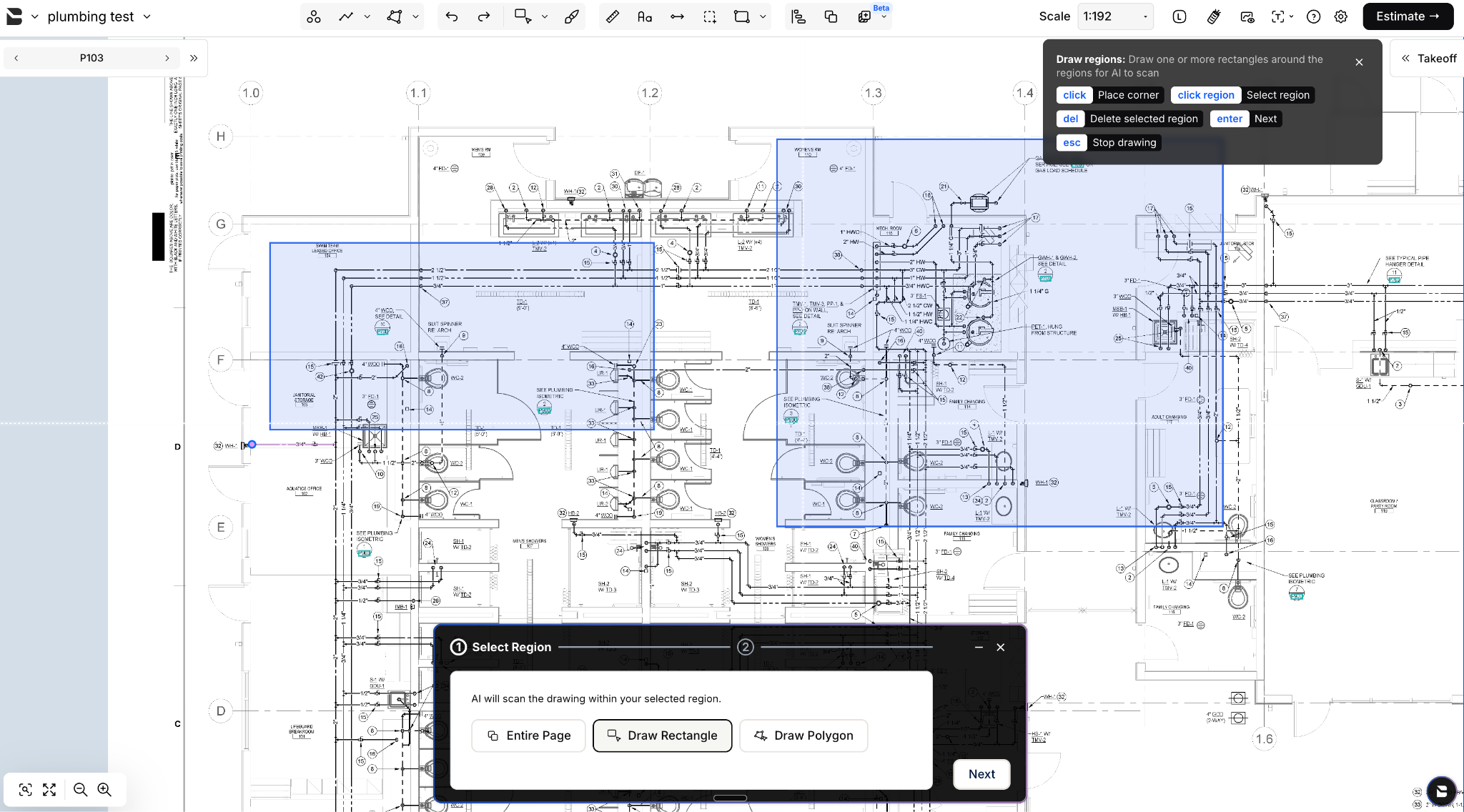
Select several areas of a sheet in one AI run instead of running each area separately.
Smarter plumbing detection
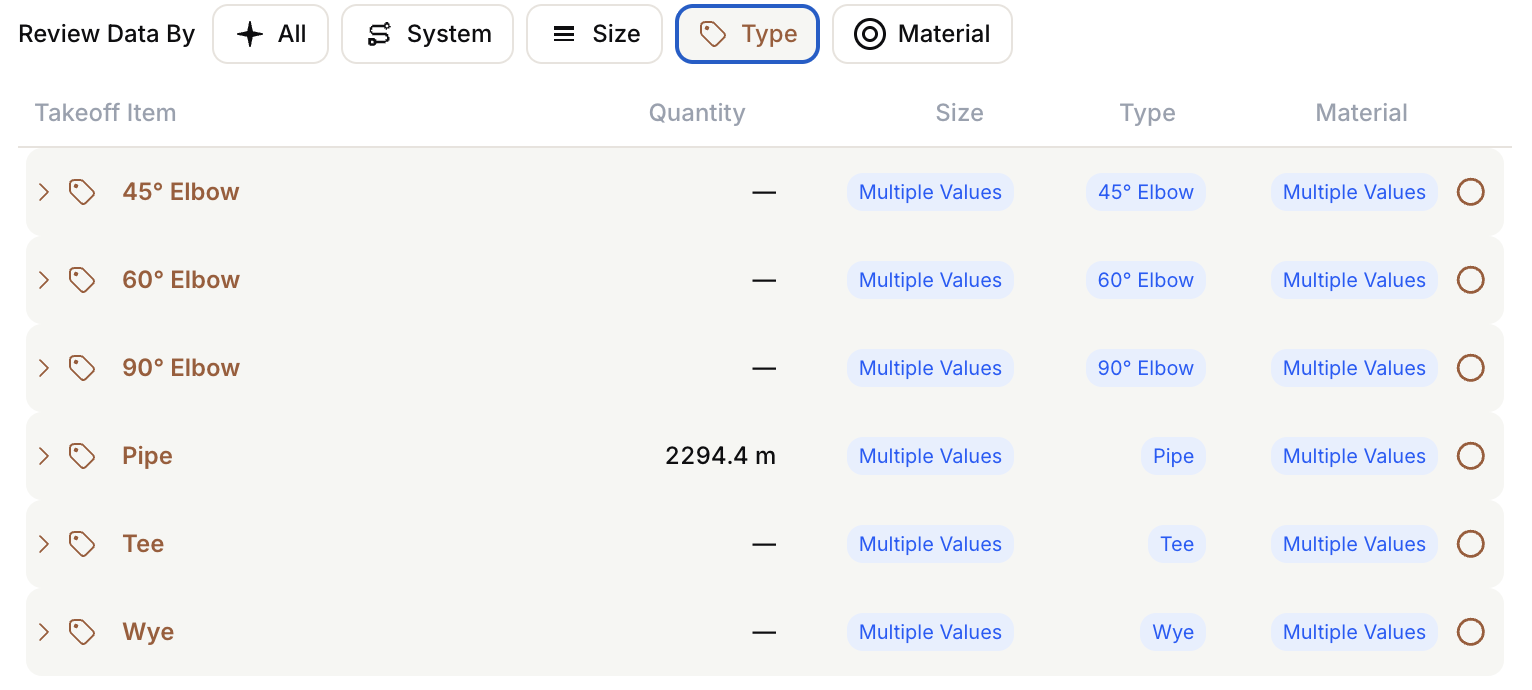
Our computer vision models got a round of improvements, including better:
- Detection accuracy for symbol legend counts and pipe and fitting models.
- Line pattern search especially on sheets where systems are shown by line type.
- Fitting detection, with more fitting types, like elbows, tees, and wyes.
Bobyard University has a new campus
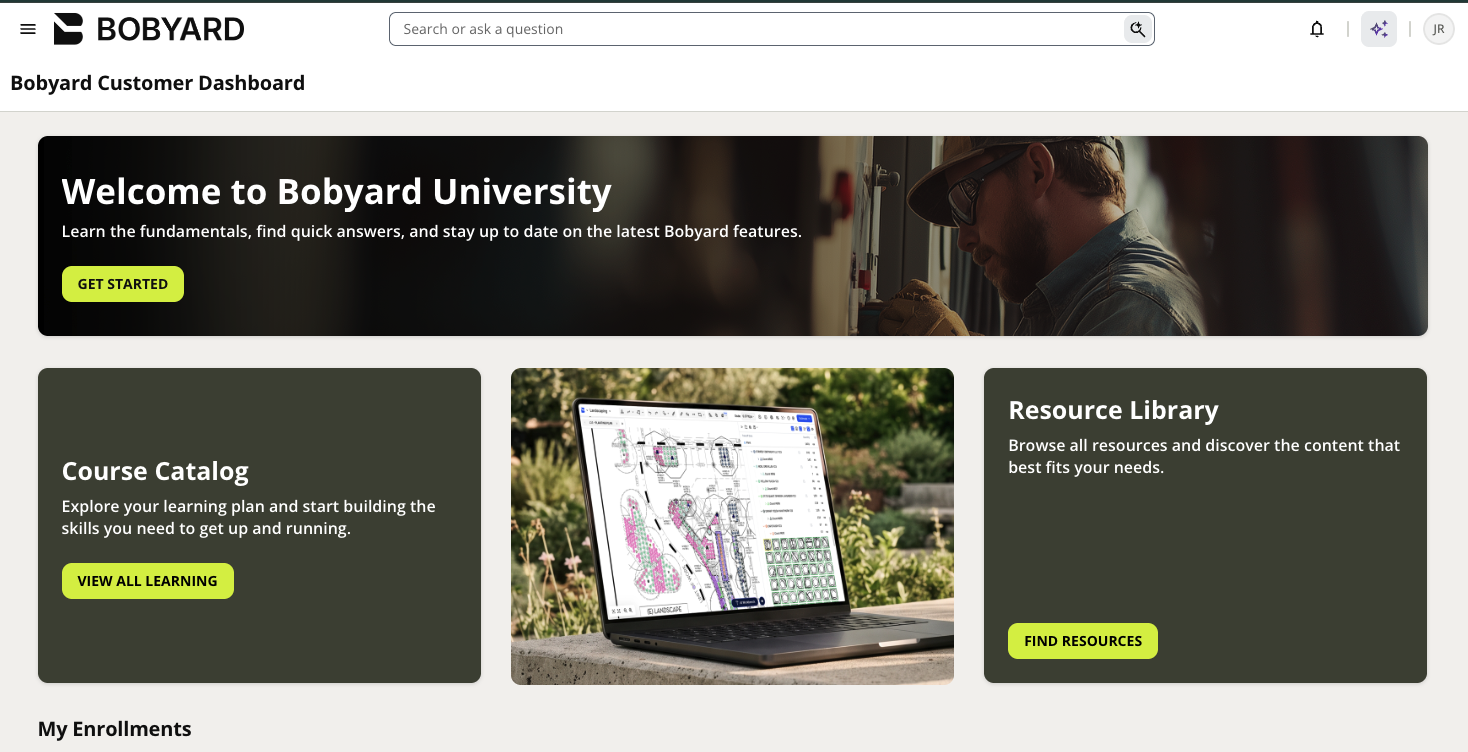
We've launched a new learning management system for Bobyard University, with updated and brand-new learning materials. To register, log in to Bobyard, click the graduation cap on the bottom left, and head in to the New Campus. The old Bobyard University will retire at the end of October.